

From Data to Visuals: The UI Layer That Makes Operators Faster

Most buildings don’t have a “data problem.” They have a usability problem.
The BAS is collecting data. The points are there. The histories are there. Alarms exist. Schedules exist.
And yet operators still lose time every day because the system forces them to work too hard to answer basic questions:
What’s wrong right now?
Where is it happening?
What changed?
What should I do next?
That gap between “data exists” and “action happens” is where the UI layer matters.
This post explains how to think about the UI layer in building automation—and why it’s often the single highest-leverage improvement you can make for operator speed, consistency, and overall building performance.
What the “UI Layer” Actually Is
In building automation, the UI layer is the visual and navigational system that sits on top of your station data.
It includes:
dashboards (overview screens)
equipment graphics (AHUs, VAVs, chillers, boilers, etc.)
navigation (how users find systems and zones)
widgets and templates (status cards, alarms panes, trend views, KPIs)
interaction patterns (acknowledge, override, command, setpoint changes)
Your BAS can be technically correct and still operationally painful if this layer is weak.
Why Data Alone Doesn’t Make Operators Fast
Operators don’t get paid to look at points. They get paid to keep a building comfortable, safe, and reliable.
Raw data creates friction because:
point names are inconsistent
alarms are noisy or buried
priorities aren’t clear
systems are navigated differently building-to-building
“normal” isn’t defined visually (so everything looks the same)
diagnosing requires jumping across 5–10 screens
Speed comes from reducing those decision steps.
A strong UI layer doesn’t just display data—it compresses decision-making.
The Operator Workflow the UI Must Support
If you design the UI around real operator behavior, almost everything becomes obvious.
Operators repeat this loop all day:
Detect
Locate
Diagnose
Act
Verify
A good UI layer makes each step faster.
1) Detect: What’s abnormal right now?
Operators need exceptions, not a wall of normal status.
What helps:
prioritized alarm summaries
“top issues” tiles (offline, in override, out of range, comm loss)
system-level health indicators (HVAC/plant/lighting)
“what changed since yesterday” or “new alarms since shift start”
2) Locate: Where is it happening?
If you know something’s wrong, the next question is “where?”
What helps:
structured navigation (campus → building → floor → zone → equipment)
consistent naming conventions
clickable floor plans or building diagrams (where appropriate)
equipment grouping by system and function
3) Diagnose: Why is it happening?
Diagnosis is where most time gets burned.
What helps:
setpoint vs. actual presented clearly
status + command shown together (is it on? is it commanded on?)
interlocks and safeties visible (why won’t it start?)
quick trend overlays (last 2 hours, 24 hours, 7 days)
linked dependencies (if AHU is down, show downstream zones impacted)
4) Act: What should I do?
If the UI is good, action is straightforward and safe.
What helps:
obvious control points (start/stop, enable/disable, mode switches)
guardrails around overrides (timed overrides, visible override banners)
consistent control placement across templates
role-based access (operators vs. admin vs. service)
5) Verify: Did it work?
Verification is often ignored in UI design, but it’s critical.
What helps:
immediate feedback states (command accepted, status changed)
confirmation patterns
post-action trends and alarm clearing indicators
“return to normal” banners when overrides expire
What a High-Performance UI Layer Looks Like
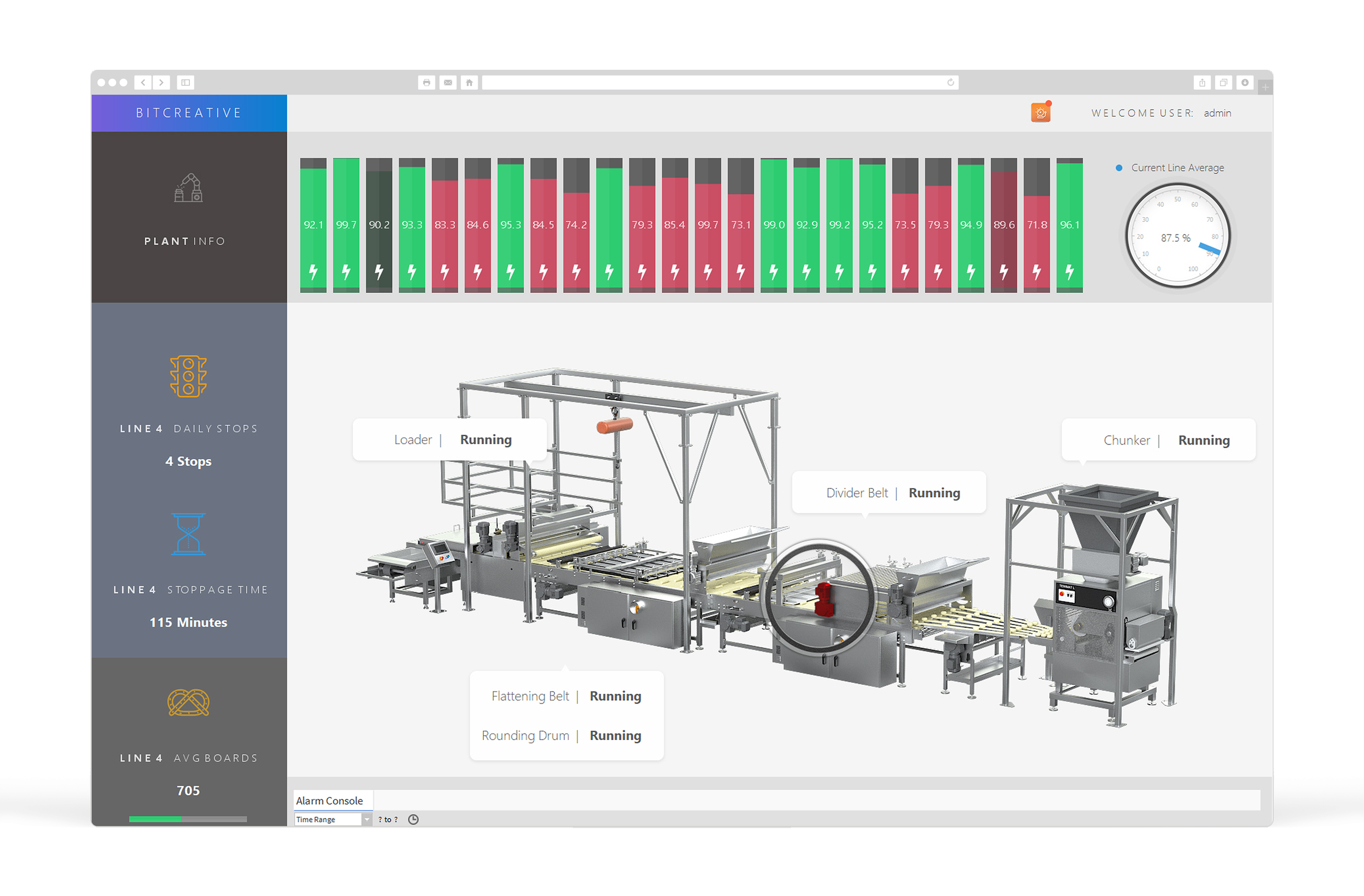
Here’s the simplest way to define a great BAS UI:
It reduces clicks.
If the operator needs 9 clicks to get to the answer, the UI is failing.
It highlights exceptions.
Normal conditions should be quiet; abnormal conditions should stand out.
It’s standardized.
The building shouldn’t feel different depending on who built the graphic.
It’s built on templates.
The goal isn’t “custom everything.” The goal is “repeatable and scalable.”
It works on real screens.
A UI that looks good on a 4K monitor but breaks on common operator hardware isn’t real.
Common UI Layer Failures (And Why They Cost You Money)
“Everything is available, so it’s fine.”
Availability isn’t usability. “It’s in there somewhere” is expensive.
“Our graphics look great.”
If operators still rely on tribal knowledge and memory, they aren’t great.
“We don’t want to touch the UI.”
You don’t have to rebuild the whole BAS to massively improve the UI layer. Start with:
one building
one system type (AHUs)
one dashboard template
Then scale.
“We’ll add another third-party overlay.”
Sometimes overlays help. Often they add licensing, maintenance, upgrade friction, and training overhead. If you can do the job natively, you usually should.
Why This Matters Even More in Niagara Environments
Niagara systems can be incredibly powerful—but the experience depends heavily on implementation.
When the UI layer is built well (templates, consistency, native components), you get:
faster response times
easier training
better service coordination
a system that’s more “operator tool” than “engineering project”
The Bottom Line
Your BAS data is only as valuable as the speed at which someone can:
detect issues
diagnose root cause
act safely
verify resolution
That’s what the UI layer does.
If operators are slow, it’s rarely because they’re not smart—it’s because the system makes them navigate like they’re doing digital archaeology.
Fix the UI layer, and you don’t just get prettier screens—you get faster operations.
Want a Quick UI Layer Audit?
If you share a few screenshots (overview, an AHU graphic, alarms summary, and a typical navigation tree), we can tell you what’s slowing operators down and what a “faster” UI structure would look like—without ripping and replacing your whole system